Use Display Builder for Page Layout
As a replacement of Block Layout (/admin/structure/block)
A page is assembled from several levels at once: a page layout places the page's main content. What fills it is a display: an entity's view display, or a Views display. A display can itself place another display, by rendering a reference field with a view mode.
See How displays nest.
Activate
You need display_builder_page_layout module.
There is no page layout activated by default. You need to create your owns in Administration > Structure > Page layouts (/admin/structure/page-layout):
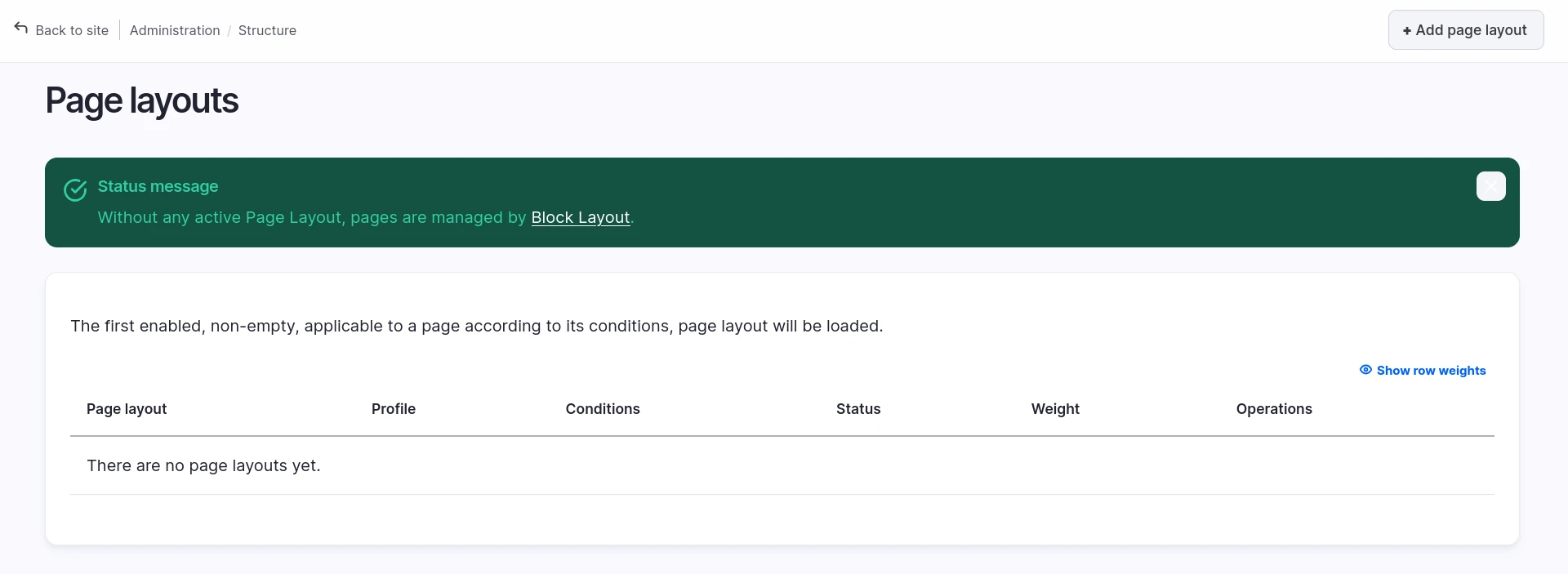
Until a page layout is both enabled and has content, Block Layout keeps building your pages. A starting point other than Blank counts as content. The overview page tells you which pages are still uncovered and links to the action that takes them over.
Default and conditional page layouts
The overview page holds two kinds of page layout. The difference is whether the layout carries conditions:
| Kind | Conditions | Applies to | Create it with |
|---|---|---|---|
| Default page layout | None | Every page that no other layout matches | Create the default page layout |
| Conditional page layout | One or more | Only the pages its conditions match | Add page layout |
A page layout with no condition is the default one. There is no separate flag to set, and no configuration key to export.
Note
The Create the default page layout action link disappears once a default page layout exists, because Display Builder offers one at a time. Editing a page layout never converts it between the two kinds.
Create the default page layout
Select Create the default page layout to open
/admin/structure/page-layout/add-default. The form opens on a reminder of what
this layout is for:
This layout has no condition, so it applies to every page no other layout matches. It is checked last, which leaves conditional layouts free to take over the pages they target.
Then:
- Select a Starting point.
- Select a Profile.
- Keep Enabled selected.
- Select Save.
This form asks for no label and no conditions. Display Builder names the layout
Default, with the machine name default.
Create a conditional page layout
Select Add page layout to open /admin/structure/page-layout/add, then:
- Enter the Label. The machine name derives from it.
- Select a Starting point.
- Select a Profile.
- Set your Conditions.
- Keep Enabled selected.
- Select Save.
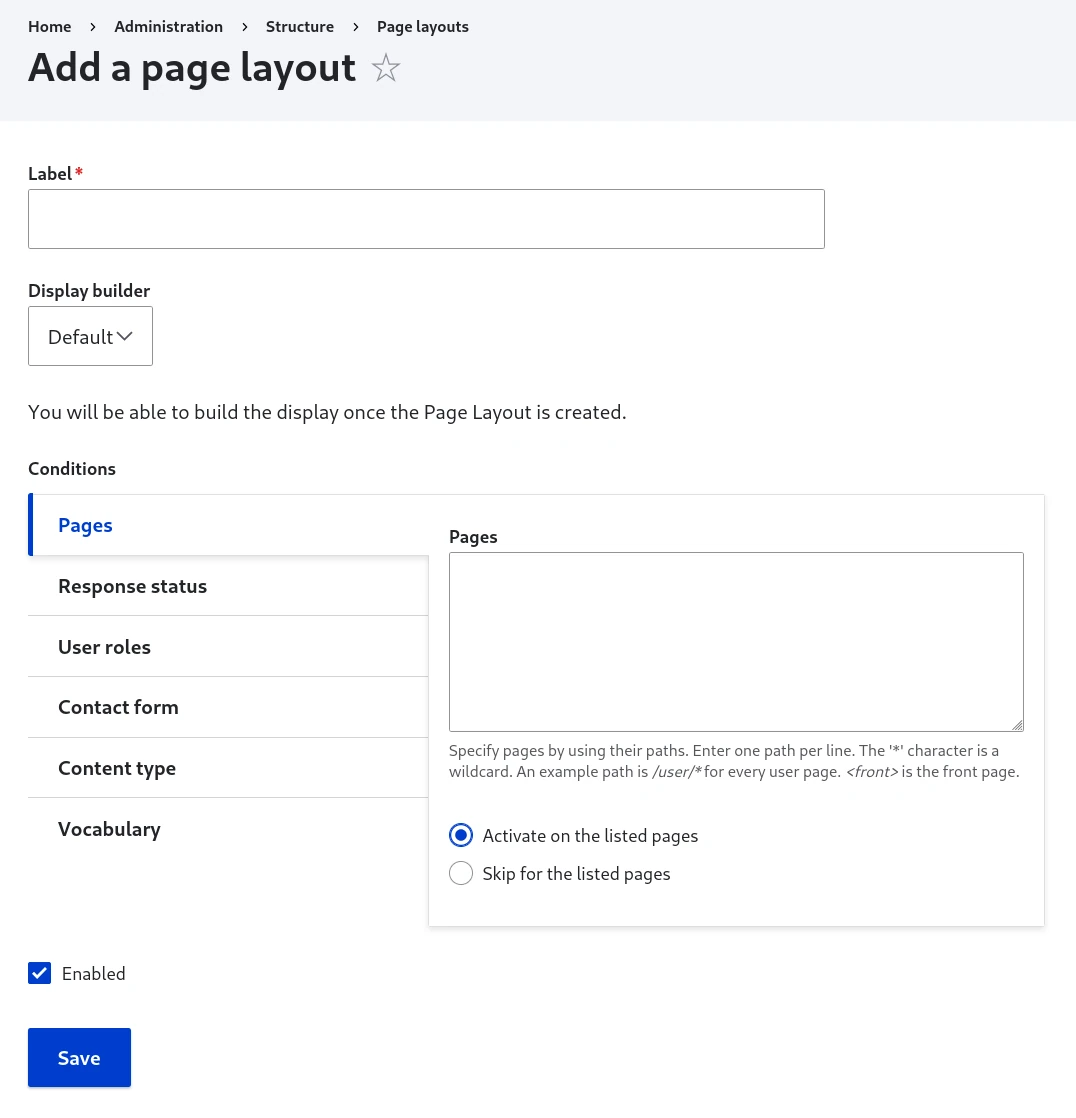
Condition plugins is the heart of the form:
- Drupal Core already provides a few plugins. Pages is the most commonly used. Language is visible only if at least two languages are activated in the site.
- You can add more conditions by activating or developing Drupal modules.
- Most condition plugin utilize contexts. The context will be the one of the page visitors will load.
- All conditions must be met for a page layout to load.
Configure at least one condition. Saving without any is refused:
Configure at least one condition. A page layout with none applies to every page, which is what the default page layout is for.
Starting points
The Starting point decides what Display Builder places in the layout when it is created. It appears only while you create a layout that has nothing in it yet, because a layout is seeded once. Editing a layout later never shows the field again, and neither does duplicating a layout that already carries content: the duplicate keeps what it was copied from.
| Starting point | Offered on | What it places |
|---|---|---|
| Start from your current site | The default page layout only | The blocks currently placed in your front-end theme, in their matching regions, still rendered by that theme's page template |
| Minimal Drupal page | Both forms | Breadcrumbs, status messages, page title, tabs, primary actions and the main content, without the theme page shell. Help is placed too when the Help module is installed |
| Blank | Both forms | Nothing at all |
Start from your current site defaults to selected on the default page layout, and Minimal Drupal page on a conditional one.
Warning
Start from your current site is a one-time copy. Later changes in Block Layout don't show up in the page layout. Replace the contents of each region with components as you go, then remove the theme page shell to take full control of the page.
Because Minimal Drupal page and Blank leave out the theme page template, the page is unstyled until you add layout components.
Warning
The starting point is saved with the layout. A layout saved Enabled with a starting point other than Blank takes over its matching pages as soon as you select Save, before you open the builder. To build it first, clear Enabled when you create it, and enable it once it is ready.
Tip
To start from a layout you already built, duplicate it from the page layouts list instead.
Use Display Builder
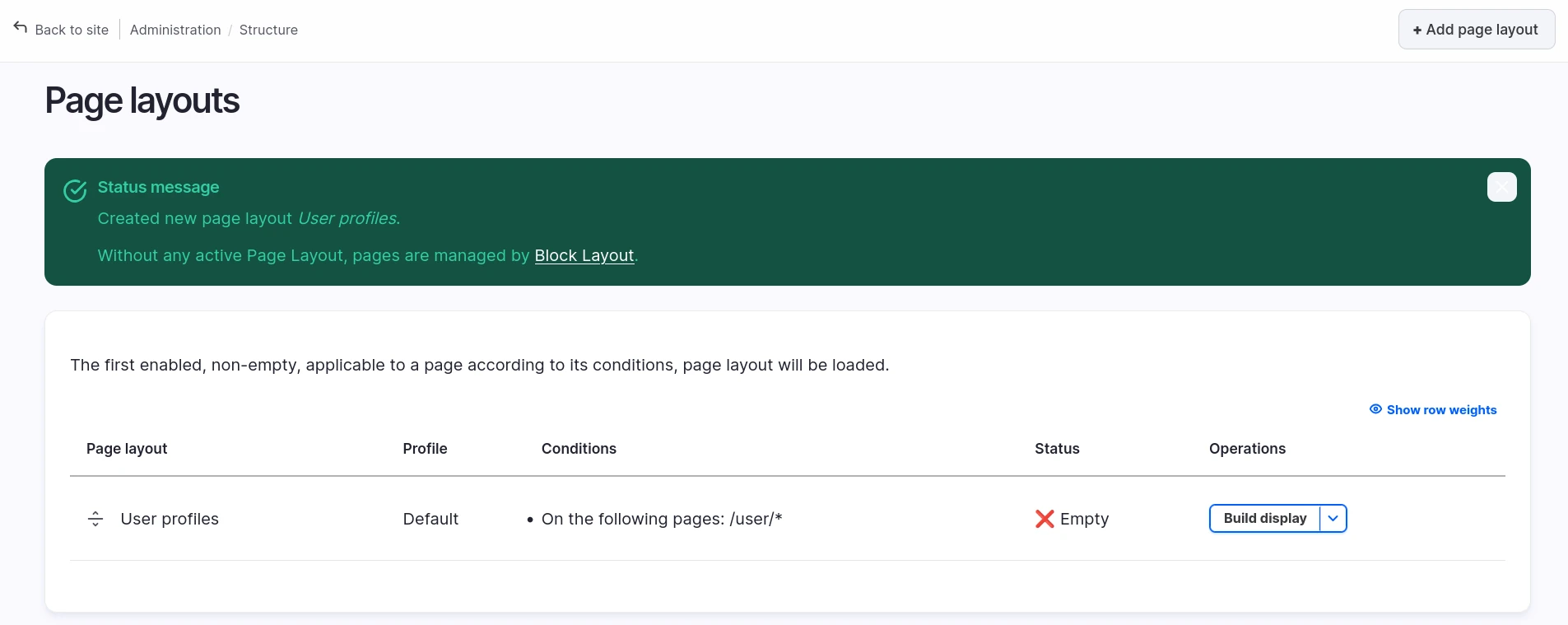
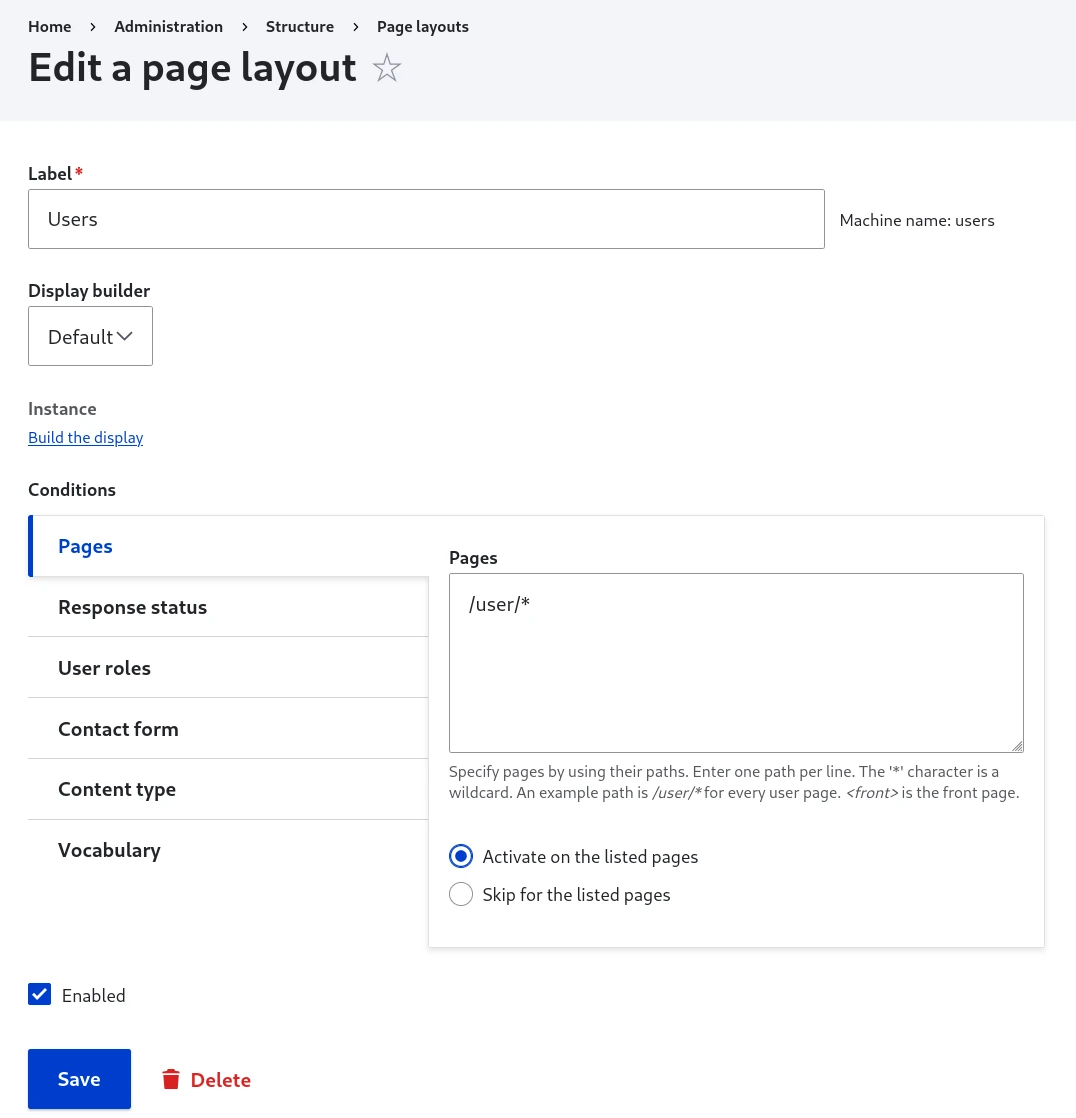
You will be able to build the display once the Page Layout is created.
From the overview page:
Or from the edit page:
The Display Builder instance is a normal one with the starting point preloaded (saved with the layout when you submitted the form) and some sources specific to the Page context:
[Page] Title[Page] Main contentTheme page (from active theme): the theme's page shell, with its regions as slots
Tabs, primary admin actions, breadcrumbs, messages and help are regular core blocks, picked from the Blocks library like any other block.
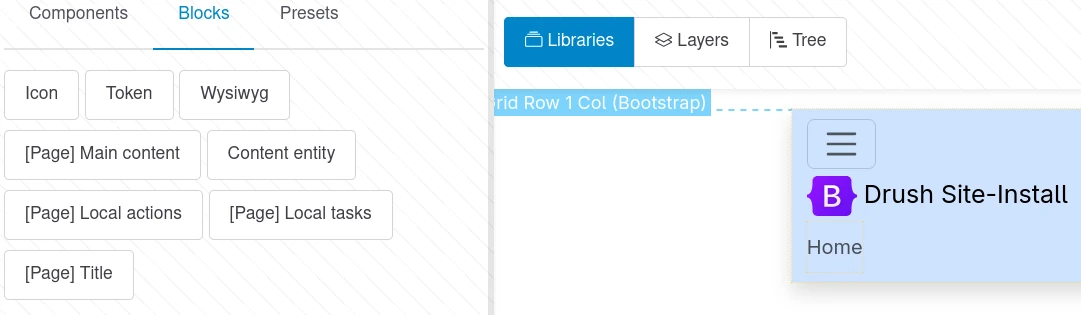
Other modules can provide Source plugins, and you can add your owns.
Manage
All Page layouts are manageable from the overview page:
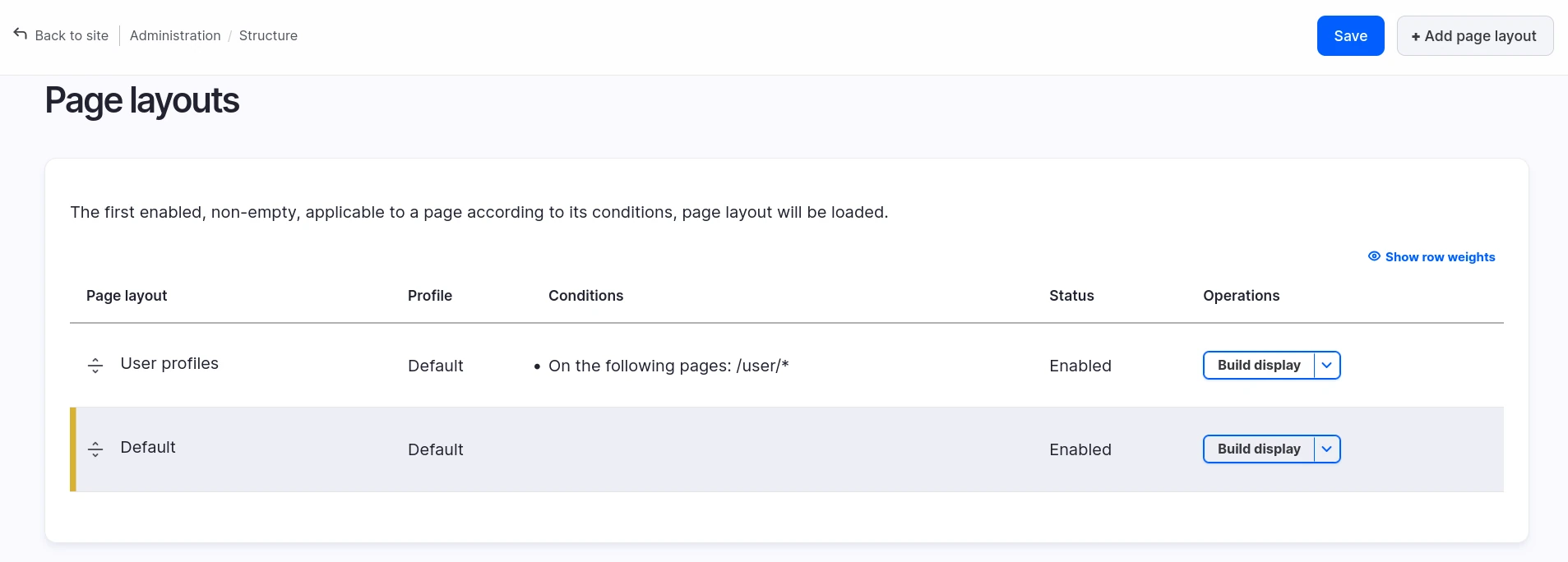
Conditional Page layouts are draggable and orderable. Order is important. Don't forget to save. The default page layout sits apart at the bottom of the list, with no drag handle, because its position is fixed.
From top to bottom, checking conditional Page layouts one by one, the first one which is both:
- enabled with non-empty Display Builder (a starting point other than Blank is enough)
- applicable according to all its conditions in the context of the page
will be loaded for the page, as a replacement of both:
- Block Layout admin UI
- the page regions defined in the theme (with the related
page.html.twigtemplate)
It is better to keep the most specific ones at the top, and the more generic at the bottom.
Tip
Order matters! Position your most specific condition checks at the top, since Display Builder will use the first matching page layout. Generic layouts should be at the bottom as fallbacks.
The default page layout is checked last, whatever its weight. Pages that no conditional layout matches fall through to it.
If no Page layout matches at all, Block Layout still manage the page. While no default page layout is both enabled and built, the overview page says so and points at what's missing:
- No default page layout exists yet. Create one to take the uncovered pages over.
- The default page layout is empty. Build its display.
- The default page layout is disabled. Enable it.
- Several layouts carry no condition (imported configuration can do that), and none of them is both enabled and built. Enable one and build its display.
Once a default page layout is both enabled and built, the message disappears.
Note
Admin pages are out of scope for now: no page layout replaces them.
Disabling a page layout is one way to stop it matching: the pages it used to cover fall back to the next matching layout below it, or to Block Layout and the theme's own regions if none do. Nothing about the previously overridden pages is lost by disabling; it only stops taking them over. The same goes for the default page layout: disable it from its edit form, or delete it from the overview page, and the uncovered pages go back to Block Layout. The Create the default page layout action link returns after a deletion.
You can build a page layout entirely while it is disabled, then enable it once it is ready: only viewing a page is gated by the enabled status, editing and publishing the display are not. This is a normal, supported way to prepare a layout without exposing an unfinished one to visitors.
See also
- Build a homepage from a landing page - Tutorial: a landing page, then a page layout for the front page only
- How displays nest - What a page layout owns, and what fills it
- Available islands - The panels and controls you build with
- Display Builder profiles - Configure UI profiles
- Migration from Layout Builder - Move an existing site over